Fixing Microsoft Outlook Connectivity Issues in Office Environments
Fixing Microsoft Outlook Connectivity Issues. If you work in an office that uses Microsoft Outlook with Exchange Server, chances are you facing these.
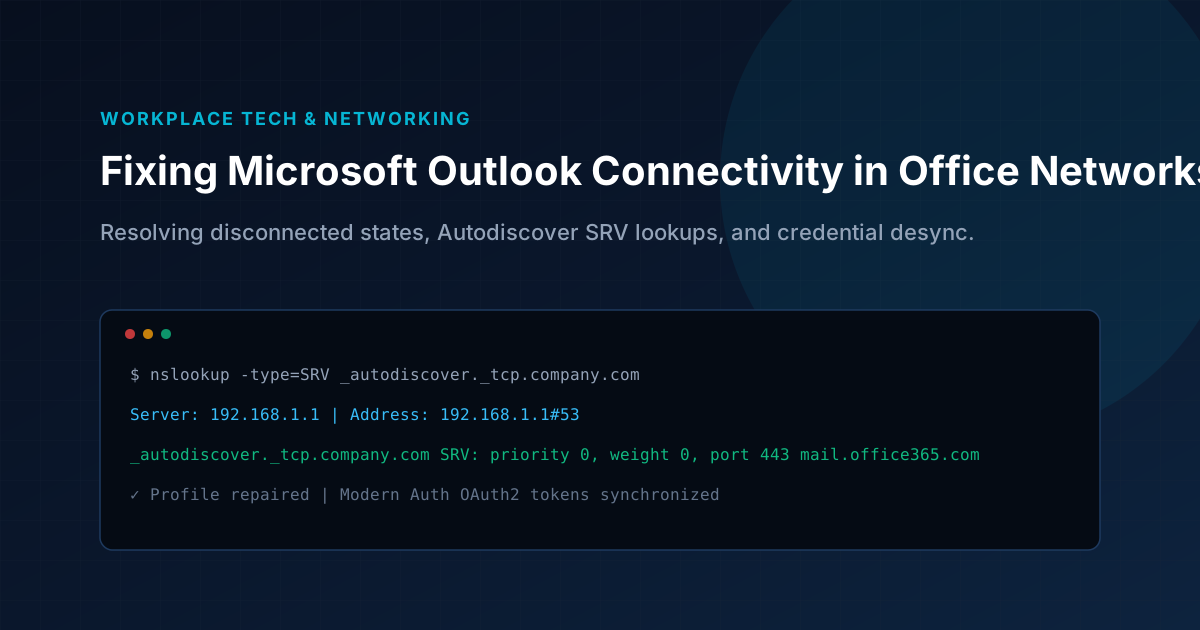
Key Architecture Takeaways
- Verify Autodiscover SRV DNS records to eliminate Exchange endpoint resolution failures.
- Isolate crashing extensions by launching Outlook in Safe Mode with outlook.exe /safe.
- Re-authenticate cached account credentials via Windows Credential Manager.
- Generate a fresh mail profile via Control Panel Mail applet to clear cache corruption.
🛠️ Fixing Microsoft Outlook Connectivity Issues.
If you work in an office that uses Microsoft Outlook with Exchange Server, chances are you've encountered the dreaded:
- “Trying to connect…”
- “Disconnected”
These connectivity issues can bring your productivity to a halt. Fortunately, many of these problems are fixable without calling IT — and this guide will help you resolve the most common Outlook connection issues yourself.
📌 Common Causes of Outlook Not Connecting
- 🌐 Network issues (Wi-Fi, Ethernet, VPN)
- 🧱 Corrupt Outlook profile
- 🔑 Expired or incorrect credentials
- 🧩 Problematic Outlook add-ins
- 🧭 DNS or Autodiscover configuration issues
- 🖥️ Exchange Server downtime (rare, but possible)
🔍 Step-by-Step Troubleshooting Guide
✅ 1. Check Your Internet or VPN Connection
- Ensure you’re connected to a working Wi-Fi or Ethernet network.
- If you're using a VPN, disconnect and try reconnecting.
- Open a web browser and check any site (e.g., microsoft.com) to confirm internet access.
🔄 2. Restart Outlook
- Completely close Outlook (check Task Manager to be sure).
- Reopen the app and see if the connection restores.
🔐 3. Verify Your Credentials
- Recently changed your password? Outlook might still be using the old one.
- Go to:
File > Account Settings > Account Settings - Select your account, then click Repair. Enter your current password if prompted.
🌐 4. Try Outlook Web Access (OWA)
- Log in via your browser (e.g., Outlook Web).
- If OWA works but the Outlook app doesn’t, the issue is local to your device.
👤 5. Create a New Outlook Profile
- Go to:
Control Panel > Mail > Show Profiles - Click Add, name the new profile, and set it to “Prompt for a profile to be used.”
- Open Outlook using the new profile.
🧩 6. Disable Problematic Add-ins
- Start Outlook in Safe Mode:
Windows + R → outlook.exe /safe - If it connects, disable add-ins via:
File > Options > Add-ins > Manage COM Add-ins > Go - Uncheck non-essential add-ins and restart Outlook normally.
🧭 7. Check Autodiscover and DNS Settings
- Open Command Prompt and type:
nslookup -type=SRV _autodiscover._tcp.yourdomain.com* If it fails, contact your IT team for DNS configuration help.
🧰 8. Repair Microsoft Office
- Go to:
Control Panel > Programs and Features - Select Microsoft Office, click Change, and choose Quick Repair or Online Repair.
🔄 9. Update Outlook
- Go to:
File > Office Account > Update Options > Update Now
📣 When to Escalate to IT
If none of the above steps work, it's time to involve your IT team. Be sure to tell them which troubleshooting steps you’ve already tried — this helps them diagnose the issue faster and more accurately.
💡 Pro Tip: Keep Credentials in Sync
If your organization uses Microsoft 365 or Active Directory:
- After changing your Windows password, update saved credentials in Windows Credential Manager.
- This avoids Outlook using cached (old) credentials.
✅ Conclusion
Outlook connectivity issues are frustrating but rarely require expert intervention. By following the steps in this guide, most users can get back online in under 10 minutes.
Stay tuned for our next blog post, where we’ll troubleshoot shared mailbox issues in Outlook!
Production Runbooks & Architecture Notes
Monthly technical dispatches covering Linux VPS hardening, strict DMARC deliverability, Next.js optimization, and cloud operations. Zero sales fluff.