Back to All ArticlesFull-Stack Web
Full-Stack Web2025-02-122 Min Read1,783 views
How to create NextJS App and run locally!
To build a Next.js website, you need to follow a few prerequisites and installation steps. Here's a guide to get you started and run it locally.
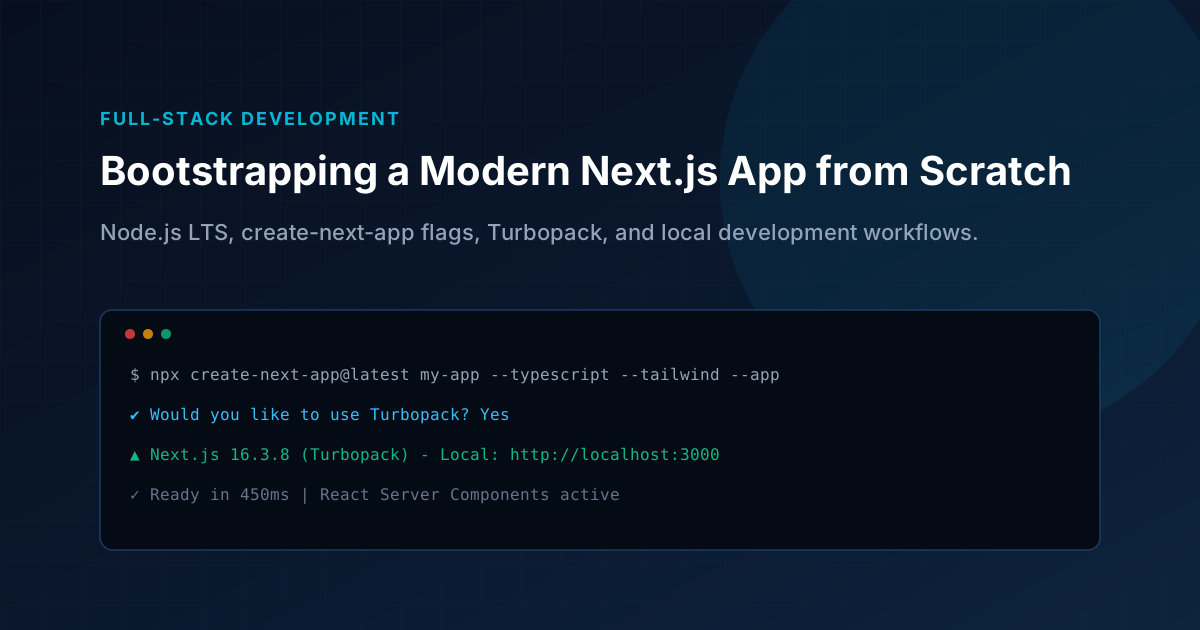
Key Architecture Takeaways
- Install Node.js LTS as the foundational runtime for Next.js builds.
- Bootstrap modern applications with create-next-app flags for TypeScript and Tailwind.
- Leverage Turbopack for sub-second hot module reloading during development.
- Always test production builds with npm run build prior to deployment.
To build a Next.js website, you need to follow a few prerequisites and installation steps. Here's a guide to get you started and run it locally.
Prerequisites
Node.js:
- Next.js is built on top of Node.js, so you need to have it installed.
- You can download and install the latest version of Node.js from here. It's recommended to install the LTS version.
npm or yarn:
- npm comes with Node.js, so once you install Node.js, npm is already installed.
- Alternatively, you can use Yarn as the package manager. You can install Yarn by running:
BASH
npm install --global yarn
```text

**Text Editor/IDE**:
- You’ll need a code editor to work on your project, such as **Visual Studio Code** or any other text editor.

## Installation Process for Next.js Project

# 1. Create a New Next.js App

To start a new Next.js project, you can use **Create Next App**, which is a starter template.

1. Open your terminal/command prompt.
2. Run the following command to create a new Next.js app:
```bash
npx create-next-app@latest my-site
```text
3. This will automatically create a new directory called `my-site` and set up a basic Next.js project.
4. If you prefer using **Yarn**, you can run:
```bash
yarn create next-app my-site
```text

# 2. Navigate to Your Project Directory

After the setup process is complete, navigate into your newly created project directory:
```bash
cd my-site
```text

# 3. Install Dependencies

If dependencies haven't been installed automatically during project creation, run the following command to install them:
```bash
npm install
```text
Or, if you're using Yarn:
```bash
yarn install
```text

# 4. Running the Project Locally

To start the Next.js development server locally, run the following command:
```bash
npm run dev
```text
This will start the development server at `http://localhost:3000`. You can open this URL in your browser to view your Next.js app running locally.

# Next Steps

**Editing the Site**:
- Open the project in your code editor and start editing the files in the `pages` directory (or `app` directory) to customize your site.
- The default `pages/index.js` (or `app/page.tsx`) file is the homepage of your app. When you edit this file, your browser will automatically reload to reflect the changes.

## Additional Commands

**Build the app for production**:
```bash
npm run build
```text

That's it! You now have a Next.js website running locally on your machine. Feel free to explore more features of Next.js as you develop your website.

Check what a class in JavaScript is [HERE](/blog/what-is-class-in-javascript-how-to-define-and-use-it)
Found this architecture guide useful?Share this dispatch with your engineering team
Field Engineering Dispatches
Production Runbooks & Architecture Notes
Monthly technical dispatches covering Linux VPS hardening, strict DMARC deliverability, Next.js optimization, and cloud operations. Zero sales fluff.