Python Installation and Environment Management Using pip and venv
A complete step-by-step developer guide to installing Python on Windows, macOS, and Linux, managing packages with pip, and isolating projects with virtual environments.
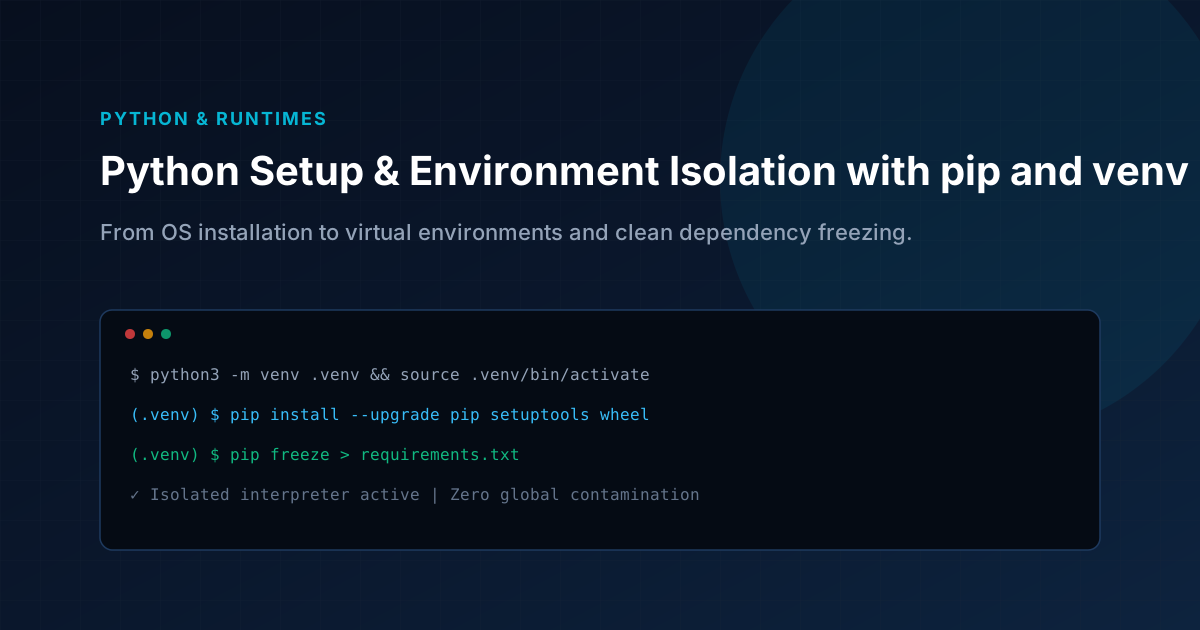
Key Architecture Takeaways
- Always add Python to PATH on Windows during initial installer execution.
- Use python3 -m ensurepip --upgrade or get-pip.py when pip is missing.
- Isolate all application dependencies with venv to prevent polluting system packages.
- Freeze dependencies into requirements.txt for reproducible deployments.
Whether you're starting your journey in software engineering or setting up for university coursework, having a reliable, isolated Python runtime is essential. In this guide, we'll walk through how to install Python across major operating systems, manage dependencies using pip, and isolate your workspaces using standard library venv.
Step 1: Installing Python
python --versionWindows Setup Instructions
- Visit the official Python website.
- Download the latest stable release (e.g. Python 3.12+).
- Run the installer and ensure you check the box that says "Add Python to PATH".
- Click Install Now and follow the on-screen setup prompts.
- Verify your installation in Command Prompt or PowerShell:
python --version
macOS Setup Instructions
- Install Homebrew if not already configured on your system.
- Open Terminal and run:
brew install python
python3 --version
Linux (Ubuntu / Debian) Setup Instructions
- Open your terminal emulator.
- Update repository indexes and install Python with
pipandvenv:
sudo apt update
sudo apt install -y python3 python3-pip python3-venv
python3 --version
Step 2: Managing pip (Python's Package Installer)
pip is the standard package manager for Python that enables you to download and manage third-party libraries and modules from the Python Package Index (PyPI). pip comes bundled with official Python distributions.
Verify your pip installation by checking its version:
pip --version
If pip is not available on your system path, you can bootstrap it using Python's built-in module:
python -m ensurepip --upgrade
Alternatively, download and execute the official bootstrap script:
curl -sS https://bootstrap.pypa.io/get-pip.py -o get-pip.py
python get-pip.py
Step 3: Creating and Activating Virtual Environments
Why Virtual Environments Matter
A virtual environment is a sandboxed Python tree with its own standalone set of packages. It prevents dependency conflicts between projects (e.g. Project A requiring Django 4 while Project B requires Django 5) and avoids polluting your operating system's global environment.
Creating a Virtual Environment
Navigate to your project directory and run:
python -m venv myenv
This creates a self-contained directory named myenv containing a dedicated Python binary and library tree.
Activating the Virtual Environment
Activate your environment depending on your operating system:
.\myenv\Scripts\Activate.ps1Once activated, your terminal prompt will display the environment prefix: (myenv).
Installing Project Dependencies
With the virtual environment active, any package installed via pip remains isolated to this project:
pip install numpy pandas matplotlib
Freezing Dependencies for Version Control
To make your workspace reproducible for collaborators or CI/CD pipelines, generate a requirements.txt file:
pip freeze > requirements.txt
Anyone cloning your repository can reinstall the exact dependency versions with:
pip install -r requirements.txt
Deactivating the Environment
When you are finished working on this project, restore your shell to the global scope:
deactivate
Tips & Best Practices
- One environment per repository: Always create a clean virtual environment for every new project.
- Git ignore environment folders: Add
myenv/or.venv/to your.gitignorefile. Never commit binaries or third-party packages to version control. - Pin stable versions: Keep your
requirements.txtup-to-date and lock dependencies before deploying to production. - Descriptive naming: For complex data workflows, use recognizable directory names like
venv-data-scienceor.venv.
Need Direct Support?
If you're a DTU student or working on university coursework and need assistance, visit the Python Support portal or reach out to your designated lab support assistants.
Production Runbooks & Architecture Notes
Monthly technical dispatches covering Linux VPS hardening, strict DMARC deliverability, Next.js optimization, and cloud operations. Zero sales fluff.